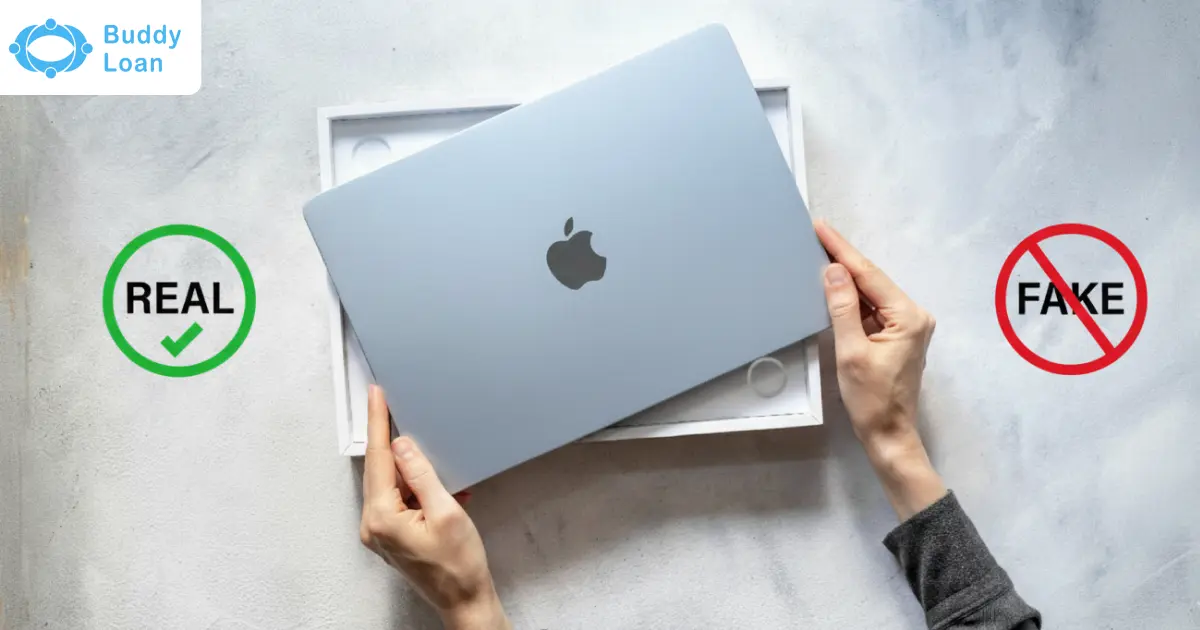
With Apple’s MacBooks being some of the most sought-after laptops in the world, it’s no surprise that counterfeits and misrepresented devices have entered the second-hand and grey markets. Whether you’re buying brand new, refurbished, or used, you should know how to check if MacBook is original before investing your money.
In this blog, we’ll walk you through seven reliable methods to verify MacBook authenticity, explain how to check the year of a MacBook using its serial number, and even cover how to confirm if a Mac mini is genuine.
7 Easy Ways to Check if Your MacBook is Original
Here are 7 quick and easy ways to check if your MacBook is original:
1. Inspect the Packaging and Physical Build
Apple takes pride in precise and consistent product design. Counterfeits often fail the packaging and build-quality test.
What to look for:
- Box quality: Smooth, rigid cardboard with crisp printing.
- Text and logos: Clean, aligned, and error-free. Counterfeits may have blurred fonts or misaligned Apple logos.
- Serial number label: Found on the box, should match the device itself.
- Hardware finish: Genuine MacBooks use an aluminum unibody, precision-cut ports, and a sturdy hinge.
If the box or device feels cheap, lightweight, or has unusual ports, it may not be authentic.

2. Use Apple’s Serial Number Lookup
The most reliable verification method is checking the serial number against Apple’s official database.
Steps:
- Find your MacBook’s serial number:
- On the box label
- On the bottom casing of the laptop
- Or via Apple Menu > About This Mac
- Visit Apple’s Check Coverage tool.
- Enter the serial number and confirm the CAPTCHA.
If genuine, Apple will display your MacBook’s model, warranty status, and support coverage. If the serial number is invalid, it’s likely counterfeit or altered.
Suggested Read: Top 10 Products to Buy in Amazon Festive Sale
3. Check MacBook Year with Serial Number
Confirming the MacBook’s year is important to ensure sellers are being honest about the model they’re selling.
How to check the year:
- Go to Apple Menu > About This Mac.
- Copy the serial number.
- Enter it into Apple’s Check Coverage page.
Apple will show you the exact year and model of the MacBook (e.g., MacBook Air M2, 2022).
You can also use third-party resources like EveryMac or MacTracker for detailed hardware specifications.
4. Verify Through macOS Settings
MacBooks run macOS only, never Windows or Linux by default. A counterfeit often runs a different OS disguised to look like macOS.
Steps:
- Click the Apple Menu > About This Mac.
- Check for the macOS version, model name, processor, memory, and graphics.
- Select System Report for a detailed hardware breakdown.
If the information doesn’t match Apple’s database or the OS doesn’t look or behave like macOS, the MacBook is likely not original.

5. Test Hardware Features
- Display: Retina clarity with vibrant colors and sharp text.
- Keyboard: Backlit with smooth, consistent response.
- Trackpad: Large and responsive, supporting multi-touch gestures.
- Speakers: Clear and balanced sound without distortion.
- Battery: Check via System Preferences > Battery > Battery Health.
6. Get Checked at an Authorised Apple Store
It is advised to buy a MacBook only from trusted sources. The most effective safeguard is to purchase only from:
- Apple’s official website
- Apple Authorized Resellers
- Apple’s Certified Refurbished Store
Avoid deals that seem unusually cheap, especially from unknown online sellers or unverified marketplaces.
You can get your MacBook checked at the store to find if your Mac is original or not.
Ways to Check if the Mac Mini is Original
Just like MacBooks, Mac minis are also at risk of being sold as fake or tampered devices.
How to verify a Mac mini:
- Box inspection: Look for high-quality printing and serial labels.
- Serial lookup: Enter the serial number at Apple’s coverage tool.
- About This Mac: Should display the correct Mac mini model and year.
- Ports: Match against Apple’s official Mac mini product page; fakes may have incorrect or extra ports.
If Apple doesn’t recognize the serial or the details don’t align, the Mac mini may not be genuine.
Final Checklist: Is Your MacBook Genuine?
Before making a purchase or resale decision, use this quick checklist to confirm whether your MacBook, or even a Mac mini, is truly original and backed by Apple’s standards.
| Area | What to Check |
| Packaging | Clean box, clear serial number, no errors |
| Serial Number | Verified on Apple’s official site |
| About This Mac | Specs and macOS match Apple’s data |
| Year Check | The serial number shows the correct release year |
| Hardware | Retina display, keyboard, and trackpad quality |
| Mac mini Check | Serial verified, ports align with official design |
For confirmation, use at least three of these checks together to validate authenticity.
Conclusion
If you’re asking yourself, “Is my MacBook original?”, these seven reliable methods give you the answer. From inspecting packaging and running Apple’s serial number check to testing hardware and verifying the MacBook year, each step adds a layer of certainty. The same process also works to confirm if a Mac mini is original.
When in doubt, always cross-check with Apple directly or visit an Apple Store. And if financing is a concern, consider using the Buddy Loan app, a secure fintech marketplace that connects you with verified lenders to fund your purchase of a genuine MacBook.