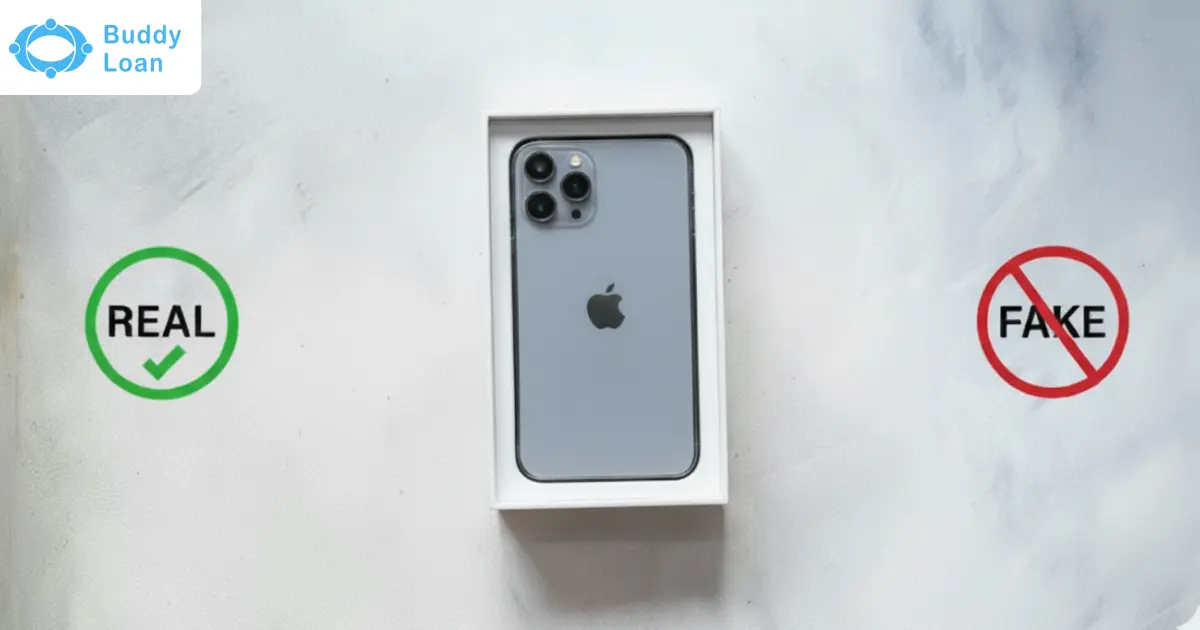
Buying an iPhone is a significant investment. However, with the rise of counterfeit and refurbished iPhones being sold as brand new, consumers must exercise caution. Fake iPhones can be convincing at first glance, but often lack essential Apple features, security, and build quality.
Whether you’re purchasing from an online marketplace, third-party reseller, or second-hand store, you need to know how to verify authenticity before parting with your money.
This blog will walk you through seven proven ways to check if an iPhone is original, using a combination of Apple’s tools, packaging inspection, device settings, and hardware checks. By the end, you’ll know exactly what to look for to avoid being scammed.
Why It’s Important to Verify iPhone Authenticity
Counterfeit iPhones may look identical to genuine ones, but they come with significant risks:
- Lack of iOS updates and security features
- No warranty or customer support
- Poor build quality and hardware failures
- Risk of malware or software incompatibility
Authenticating your iPhone helps ensure you’re buying a genuine product backed by Apple’s support ecosystem.
7 Proven Ways to Check if Your iPhone is Original
Here are 7 methods you can use to verify your iPhone’s authenticity:
1. Inspect the Packaging for Accuracy
Many fake iPhones are sold in deceptively convincing packaging. Before opening the box, conduct a thorough inspection.
Key packaging elements to verify:
- Box quality: Apple packaging is minimalistic, clean, and uses high-quality cardboard and printing.
- Text and logos: Fonts are sharp, aligned, and free of spelling mistakes. Counterfeits often feature off-center logos or misaligned fonts.
- Plastic seal: The shrink-wrap should be tight and professionally applied. A loose or resealed wrap may indicate tampering.
- Label details: Every box should have a sticker showing the iPhone’s IMEI, Serial Number, and Model Number. This should not be a second sticker placed on top of another.
- Hardware icons: Authentic iPhone boxes never show microSD slots, removable batteries, or dual SIM icons (unless the model officially supports dual eSIM or nano SIMs).
If anything on the box looks unusual or inconsistent with Apple’s usual branding, it’s worth investigating further.
Also Read: Best Laptops to Buy in Flipkart Festive Sale
2. Use Apple’s Check Coverage Tool
Apple provides an official tool that verifies if a serial number or IMEI belongs to a real iPhone.
Steps:
- Visit https://checkcoverage.apple.com
- Enter the Serial Number or IMEI from the box or device settings.
- Complete the CAPTCHA.
- View the iPhone’s model and coverage status.
What to expect:
- If the iPhone is genuine, the page will display the model name, support status, and activation state.
- If the tool returns “We’re sorry, but this serial number is not valid,” the device is likely fake or tampered with.
- Keep in mind: some counterfeiters clone valid serial numbers, so even a positive result should be cross-verified with other methods.
3. Match the Serial Number and IMEI
Once the phone is turned on, the first thing you should do is match the device’s internal data with its physical box.
How to check:
- Go to Settings > General > About.
- Find the Serial Number and IMEI.
- Dial *#06# for a quick IMEI check.
- Make sure these numbers match those on the iPhone’s box and SIM tray (if applicable).
If any of the values are missing, unreadable, or don’t match, the phone could have been tampered with or may not be genuine.

4. Decode the Model Number Prefix
Apple includes a letter prefix in the iPhone’s model number to indicate its product category.
How to find it:
- Go to Settings > General > About.
- Locate the Model Number (e.g., MGAL3HN/A).
What the first letter means:
- M: New retail iPhone sold by Apple.
- F: Refurbished iPhone by Apple or carrier.
- N: Replacement device issued by Apple service.
- P: Personalized iPhone with engraving.
If the phone is advertised as new but has a model number starting with F or N, it is not a new retail unit.
Also Read: Best Laptops to Buy in Amazon Festive Sale
5. Use an IMEI Lookup Tool
The IMEI is a unique 15-digit number that identifies your phone globally. You can use it to confirm if the phone matches Apple’s records.
Where to find the IMEI:
- On the box.
- On the SIM tray (for older models).
- Under Settings > General > About.
- Dial *#06# on the phone.
Use trusted tools like IMEI.info and Reincubate iPhone Lookup
Details provided include:
- Model name and number.
- Storage capacity.
- Device color.
- Country of origin.
If any details mismatch the phone in hand, it’s a red flag.
6. Check iOS and Core Functionality
Fake iPhones often run Android with a custom skin that mimics iOS. Authentic iPhones will always run the official iOS version provided by Apple.
What to check:
- Siri activates by long-pressing the power button.
- App Store opens with Apple-only apps and no redirects to Google Play.
- Face ID or Touch ID works smoothly without lag or error.
- True Tone Display is present on compatible models.
- The camera launches and performs fast, with high clarity and no shutter lag.
If you notice Android-style icons, the Google Play Store, or slow system performance, the device is almost certainly fake.
7. Use iOS Parts and Service History
From iOS 15 onward, Apple devices display a service history if major components have been replaced.
How to check:
- Go to Settings > General > About.
- Scroll to the Parts and Service History section.
This will indicate if any parts have been replaced (battery, screen, camera) and whether these parts are genuine or not. This is especially useful when buying used or refurbished phones.
Final Checklist: Is Your iPhone Genuine?
Before making a final judgment, run through this essential checklist to confirm your iPhone’s authenticity using physical, digital, and system-based indicators.
| Area | What to Check |
| Packaging | Clean, high-quality, accurate labeling |
| Apple Website | Valid serial or IMEI recognized |
| Device Settings | Match between internal and box data |
| Model Number | Prefix M for new, F/N for refurbished |
| Operating System | Runs iOS only |
| Hardware Quality | Smooth functionality, no lag |
| Service History | Genuine parts and clear repair history |
For best results, use at least three of these methods together to validate authenticity.
Suggested Read: Top 10 Products to Buy in Amazon Festive Sale
Conclusion
Spotting a fake iPhone requires attention to detail and access to the right tools. From examining the packaging to decoding model numbers, verifying the IMEI, and confirming iOS behavior, these seven methods will help you confidently check if your Phone is original. When in doubt, always consult an Apple Store or authorized service provider.
If you’re planning to purchase a genuine iPhone but need flexible payment options, try the Buddy Loan app. It’s a digital fintech marketplace that connects you with verified lenders to help you secure a personal loan tailored to your financial profile.
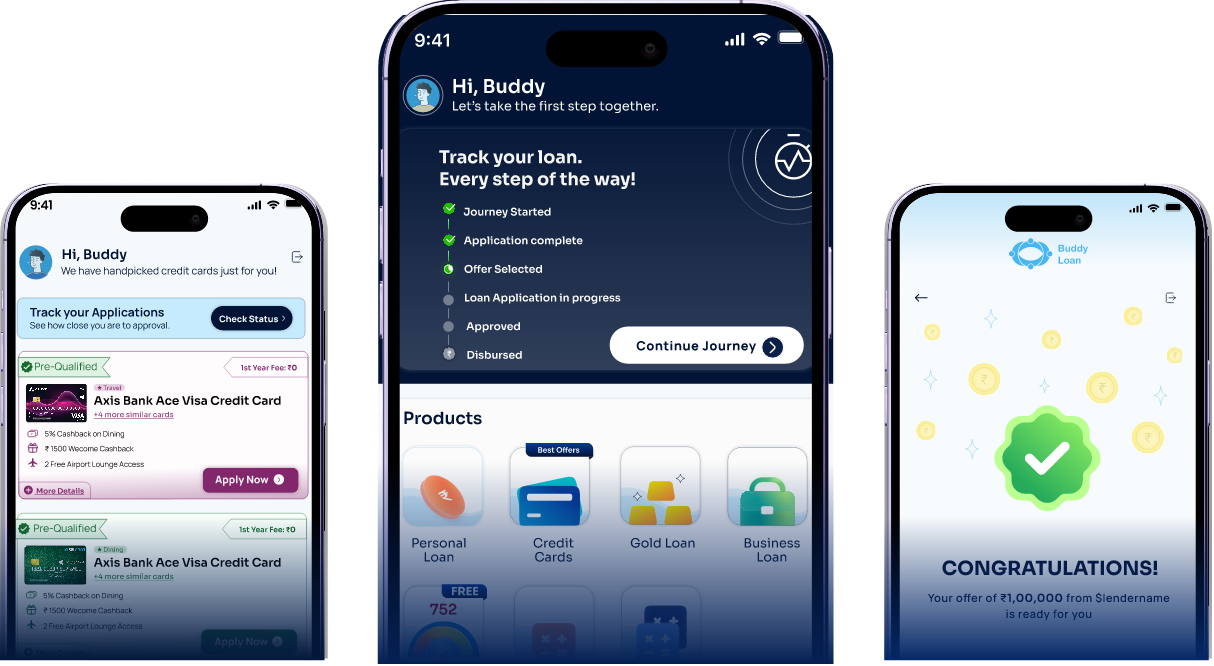
Download the Buddy Loan App Now!
One solution to each of your financial needs at your fingertip.

Scan to download now